The FNaF World browser port loads automatically. Take Freddy, Chica, and the other animatronics into a party-based RPG, then use the guide below to set up your first two teams.
Browser game
Community port
The first launch can take a few minutes. Click inside the game to focus the controls once it loads.
In this Five Nights at Freddy’s spin-off, you command the animatronics. Explore the overworld, fight with two teams, and look for recruits and upgrades as new areas open.
Start a new game
On the title screen, click Start, select an empty save slot, and choose New Game. Pick Adventure to recruit more animatronics as you explore. Fixed Party keeps you with the two teams you choose at the start, so check that each group can deal damage and recover HP. Choose Normal for a first run if you want time to learn the moves. Review both lineups, then select Done to enter the opening scene.
Build two parties before leaving town
Fill the initial eight slots across two groups of four. Mix damage and recovery on both teams. Chica is an early source of healing, and Freddy’s group attack is handy when several small enemies appear together. Put a second source of recovery or support in the other party so switching can buy you time. After the introduction with Fredbear, take a short loop through Fazbear Hills and try both teams in ordinary battles.
Save before you leave a familiar area
Use the Save option in the overworld menu after an unlock, a purchase, or a good run of battles. Fight a few easy encounters near the starting area before walking into a new zone. You can compare the time it takes to beat a group of Gearrats with the damage your first party takes. If the group survives long enough to keep hurting everyone, try a move that hits all enemies and see whether the next fight ends sooner.
Party building, battles, and exploration
Early wins in FNaF World come from having a move for the situation in front of you. Keep a dependable answer to groups of enemies and a way to recover when a fight runs long.
Read the battle before you act
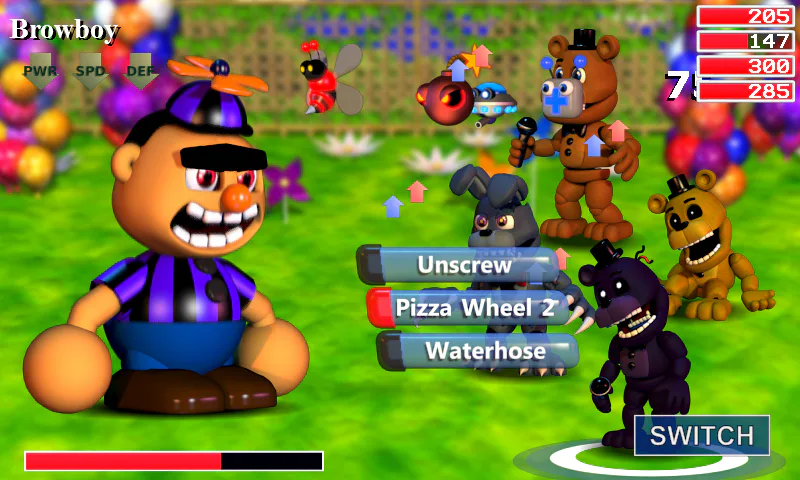
Watch which of your animatronics has a move ready. Enemies can still act while you decide, so learn the useful moves during short fights. Start with a group attack when several weak enemies are on screen. Against one target, use a reliable single-target attack and pay attention to how quickly your HP falls.
Use a healing move before a second hit can knock out your healer. When the active group is in trouble, the Switch button brings in the reserve team. A second party with a different mix of moves gives you another chance to manage an encounter. Try it in an ordinary battle so you know where the button is when a stronger enemy appears.
Give every recruit a job
In Adventure, exploring and winning regular battles can lead to encounters with other animatronics. A challenger you defeat can join the roster. Take a look at the newcomer’s moves before you swap anyone out. Ask whether it restores HP, hits multiple targets, weakens enemies, or helps cover a gap in your second team.
Try one change at a time. If the team now handles one enemy comfortably but struggles against a crowd, see which move you lost during the swap. You can often keep the recruit by moving a group attacker from the other team or assigning different roles to each lineup.
Choose Chips and Bytes for your route
Chips provide passive effects. Look through the Chips menu after opening a chest and equip a chip that addresses an issue you’ve actually seen, such as fights starting faster than you can respond. Bytes are helpers that act during battle. Lolbit’s shop in the starting area gives you an early way to try them with tokens earned while exploring.
Talk to Fredbear when you run out of obvious paths. His dialogue can point you toward the next destination. Later routes may involve unusual scenery or glitched passages. Before following one, save and remember which area you entered from so you can retrace your steps.
Try this if a larger enemy keeps beating you
Save near the route to the fight. On one attempt, watch which party member falls first and whether you have time to use recovery. If you lose the healer early, put another recovery move in the reserve lineup and switch while it can still help. If nobody is in much danger but the fight drags, try replacing one support slot with an attacker and compare the next attempt. Small changes make it easier to see what actually worked.
Choose the browser port for a session here, or visit Scott Cawthon’s Game Jolt page for the original PC release and its Update 2 instructions.
Community browser port
The FNaF World browser port is hosted by the hd_fnaf project on GitHub Pages. Its first launch can take a few minutes while it retrieves the game archive. Return through the same browser profile and page to keep access to your save. Opening the port in its own tab may use separate storage, depending on your browser.
Scott Cawthon’s Game Jolt listing offers the free PC release and explains how to reach the extra content in Update 2. Visit the listing if you want the Windows version or need the developer’s directions for the post-game route. Desktop saves and browser saves live in different places.
Wait for the game’s own progress display to finish. If the title screen is visible, click inside the frame and try the direction keys again. Check that the tab is unmuted if the game is silent. If the screen stays blank or the game can’t resume a save inside the iframe, open the port in its own tab and use the game’s menu there. Save any progress you want to keep before reloading.
Make a test save before a long run
If you plan to return later, start by saving soon after reaching the overworld. Leave the game, start it again from the same page, and check that the slot you used still appears. This small test can catch a browser storage restriction before you spend time on a longer run. If the slot disappears, try the standalone game from the start and test its save slot there before continuing.
FNaF World FAQ
Is FNaF World free to play online?
Yes. The free community browser port loads automatically on this page. Scott Cawthon’s Game Jolt listing is the separate source for the free PC release.
Do I need to install anything?
The browser version loads its game data over the network. If you choose the official release from Game Jolt instead, follow the instructions on that listing for the Windows version.
Can I play FNaF World on a phone or tablet?
The player fits smaller screens, but the game was designed around a keyboard and mouse. Use a desktop or laptop for the most reliable controls. An external keyboard and a standalone game tab may help on a tablet.
How do I keep my browser save?
Use Save from the in-game menu and keep playing from the same address on the same browser profile. Private browsing, cleared site data, and switching between an iframe and a standalone tab can affect whether a save is available.
Should I start with Adventure or Fixed Party?
Start with Adventure on Normal if you want to learn the map and recruit as you go. Choose Fixed Party if you already know the moves you want available and prefer to plan both lineups at the beginning.
How do I access the FNaF World Update 2 area?
The official Game Jolt page says to beat the game on Normal or Hard, then hold Up against the gray house door in the first area. After leaving the house, talk to Fredbear and enter the portal.